
▶ BLOG
KB No. 1010: ENSURING THE PROPER FUNCTIONING OF KERBEROS AUTHENTICATION
Points to check in order to implement Kerberos authentication and ensure it is working properly.
The Olfeo Proxy module is compatible with Kerberos transparent authentication thanks to the integration of Olfeo equipment with the Microsoft Windows Active Directory environment.
Here are various prerequisites and points to check to ensure that this authentication method works properly.
Prerequisites
- The client workstation must be joined to the company's MS Windows Active Directory domain.
- The user must log in using their account and password defined in the company directory.
- The Olfeo equipment (the master machine in an Olfeo domain) must have synchronized the Active Directory directory or directories containing the users: see the operating documentation here.
- The Olfeo equipment responsible for performing authentication (a master or slave machine in an Olfeo domain) must be joined to the MS Windows Active Directory domain. This connection must be made from the web administration interface: see the operating documentation here.
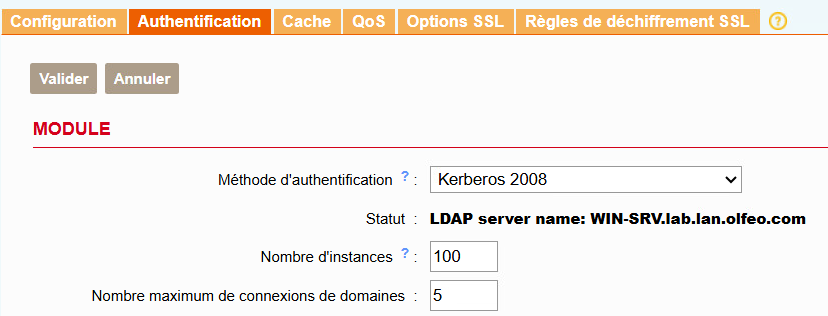
- The corresponding Kerberos authentication mode must have been configured in the proxy settings. Depending on the version of Olfeo, be sure to select the appropriate authentication type:
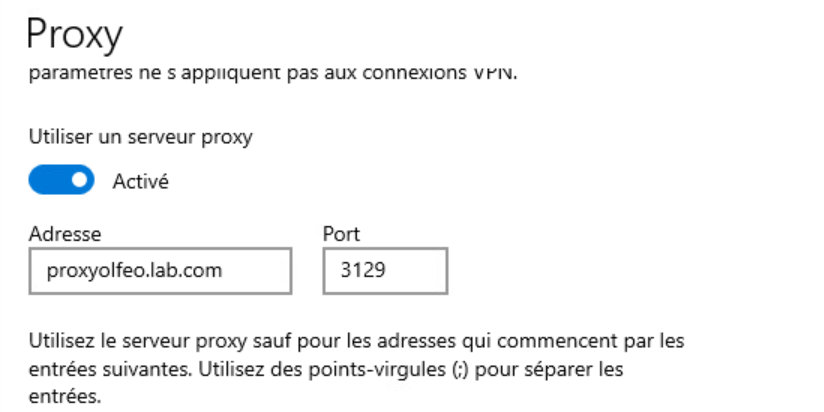
- The integration mode must be Explicit Proxy. In this mode, client workstation browsers are directly configured to access the Internet via a proxy.
- The proxy (or load balancer) address must be entered in FQDN format in the browser or proxy script settings, not as an IP address:
Verifications
- Check for the presence of the HTTP.keytab file in the proxy directory /etc/squid/:
 If this file is missing, restart the junction to the MS Windows Active Directory domain. from the web administration interface. If this operation results in an error message, perform it using the command line to obtain more information about the reasons for the failure: olfeo-join-ad-domain.py [–timeout=TIMEOUT] [–retry=RETRY] DOMAIN NTP_SERVER Example:
- Display the list of keys with the timestamp of each entry contained in the file /etc/squid/HTTP.keytab :klist -kt /etc/squid/HTTP.keytabExample:
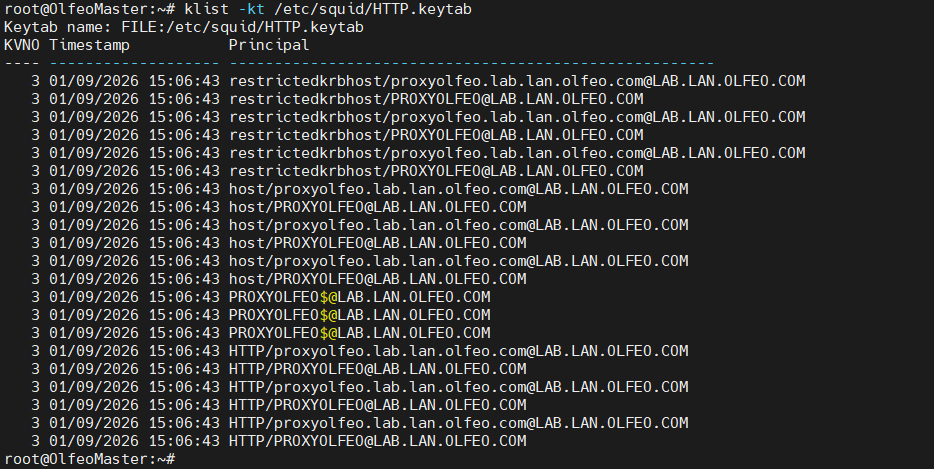
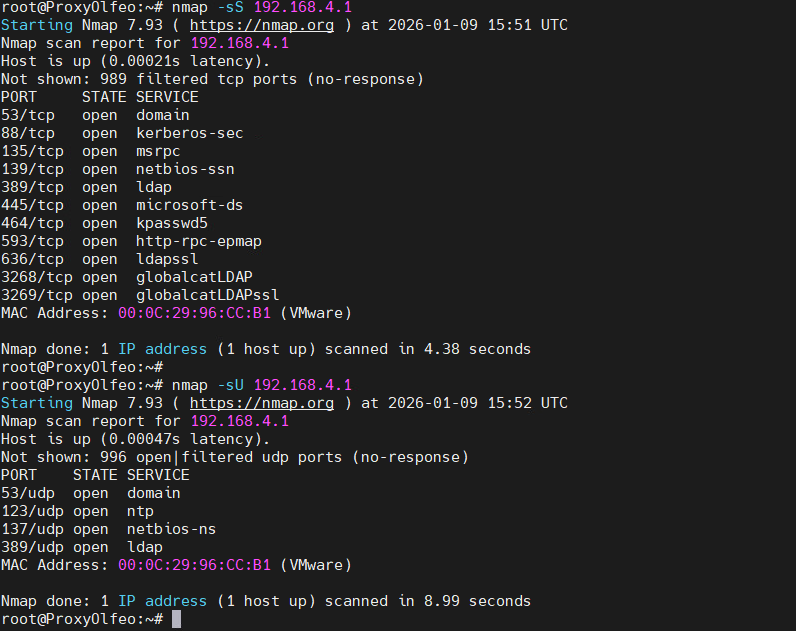
The FQDN entered as the proxy address (or in the proxy script) must match the results displayed. In an Olfeo proxy infrastructure with high availability/load balancing, it is necessary to perform operations on the keytab file: https://www.olfeo.com/fr/base-de-connaissances/kerberos-ha-lb - Verify that the port TCP/UDP88 is open between Olfeo equipment and DCs. Perform a TCP SYN scan + a UDP scan: nmap -sS -sU server_IP Example:
- The file /opt/olfeo/data/proxy/log/cache.log must mention the startup of the Kerberos authentication module. ‘negotiate_kerberos_auth’. :

- If this is not the case, restart the proxy service:
service squid restart - Use the squidclient tool (install if necessary) to view statistics related to negotiate (Kerberos) authentication: squidclient -h localhost -p 3129 mgr:negotiateauthenticator:
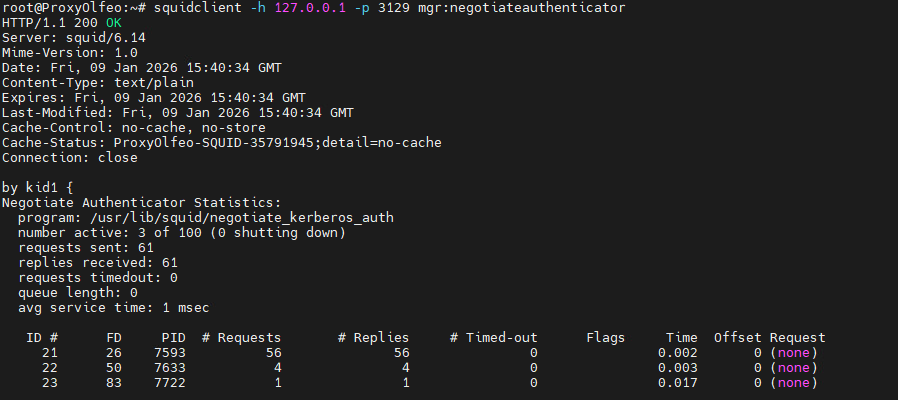 Please note that for the tool to function properly, the file /etc/hosts must be correctly filled in with the lines relating to IPv6 commented out: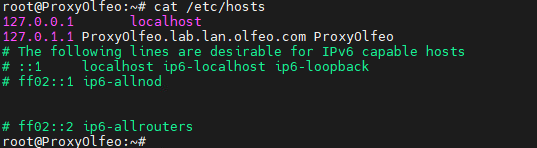
- Check the SPN records from the domain controllers. Ensure that Olfeo machines can provideHOSTandHTTPservices via Kerberos authentication on your domain controllers. To do this, you can run the following commands on your DCs in PowerShell. List SPNs (Service Principal Names):
setspn -L olfeo_machine_name
setspn -L DOMAIN\AD_domain_joining_account - Perform a network capture from the Olfeo equipment to analyze it via Wireshark:
tcpdump -ni any -s0 -w /tmp/olfeokrb.pcap