KB No. 24: Configure a GPO to allow local network requests in Chrome and Edge
Background
Configure a Group Policy Object (GPO) to allow Google Chrome and Microsoft Edge to send requests to specific local network addresses.
1. Downloading ADMX templates
1.1 For Google Chrome
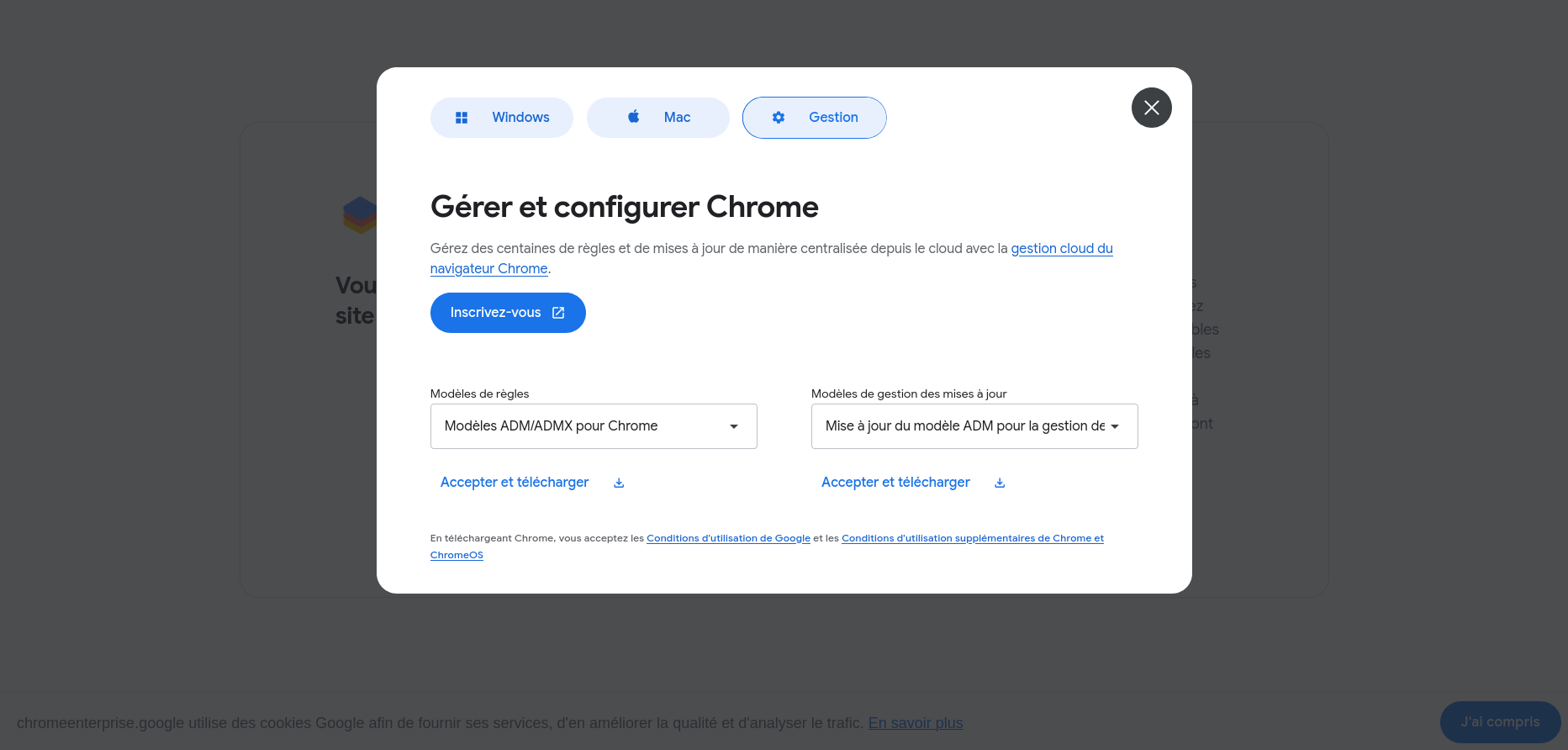
- Download link: Download ADMX templates for Chrome
- Click Accept and download under the ADMX Templates for Chrome section.
- A file .zip named policy_templates.zip will be downloaded.
1.2 For Microsoft Edge
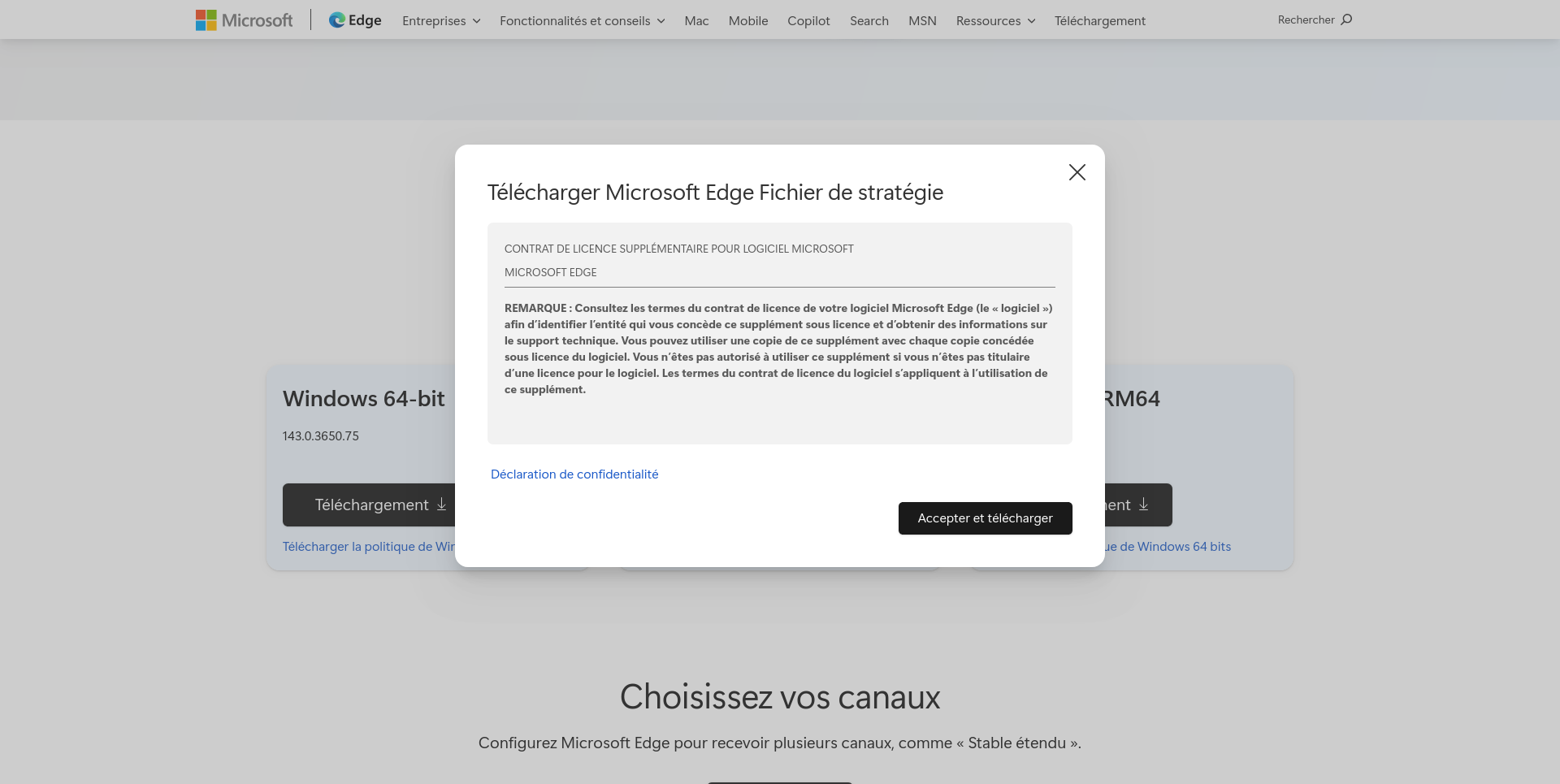
- Download link: Download ADMX templates for Edge
- Click Download Windows 64-bit Policy, then click Accept and Download.
- A file .cab file named MicrosoftEdgePolicyTemplates.cab will be downloaded.
2. Extracting and copying ADMX files
2.1 For Google Chrome
- Extract the policy_templates.zip file.
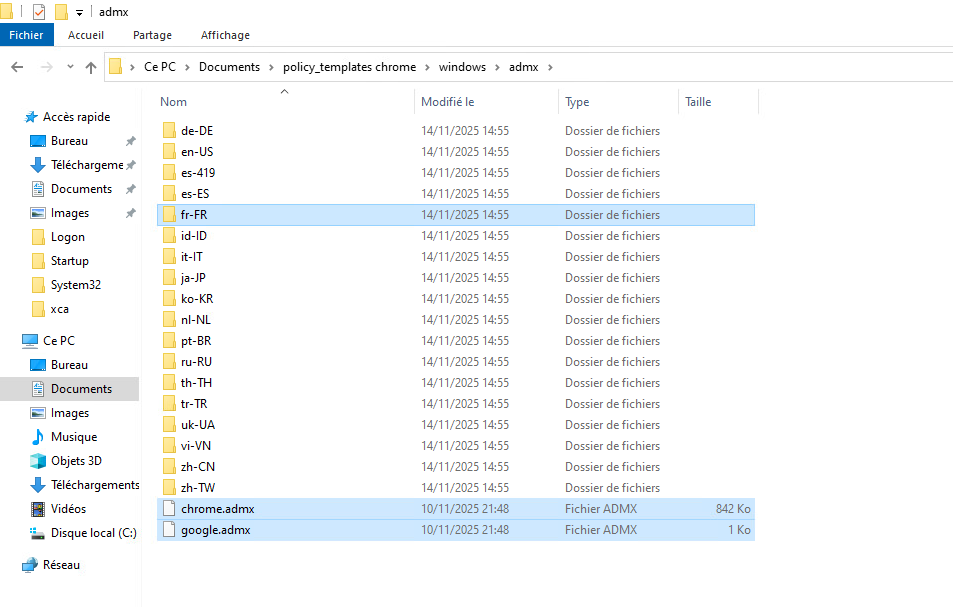
- In the extracted folder, navigate to the path: windows/admx
- Copy the following files:
- chrome.admx
- google.admx
- The fr-FR folder (for French localization)
2.2 For Microsoft Edge
- Extract the MicrosoftEdgePolicyTemplates.cab file to obtain a .zip file named MicrosoftEdgePolicyTemplates.zip.
- Extract the MicrosoftEdgePolicyTemplates.zip file.
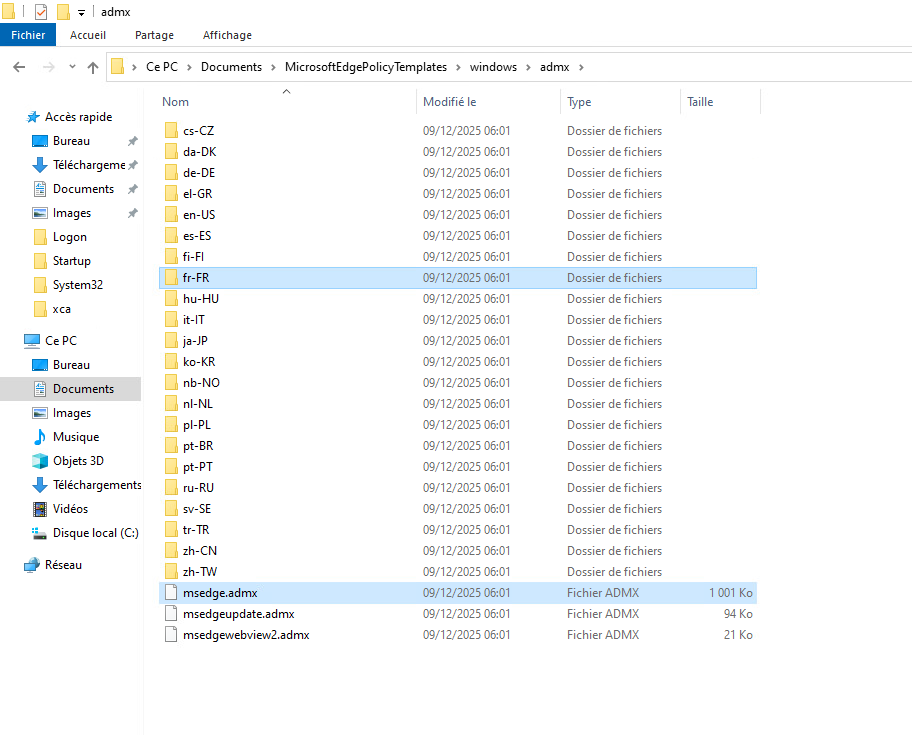
- In the extracted folder, navigate to the path: windows/admx
- Copy the following files:
- msedge.admx
- The fr-FR folder (for French localization)
2.3 Paste the ADMX files
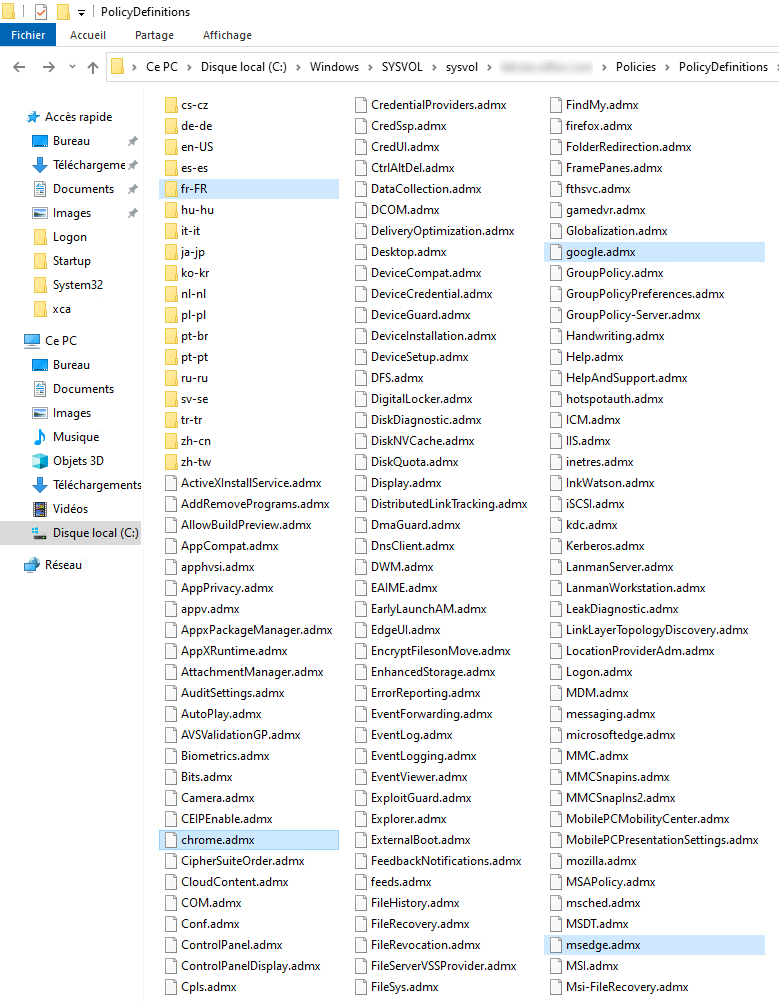
Paste all copied files (for Chrome and Edge) into the group policy definitions folder for your domain:
- C:Windows\SYSVOL\sysvol\\Policies\PolicyDefinitions\(Replace with the name of your Active Directory domain.)
3. Creating and configuring the GPO
- Open the console: Group Policy Management
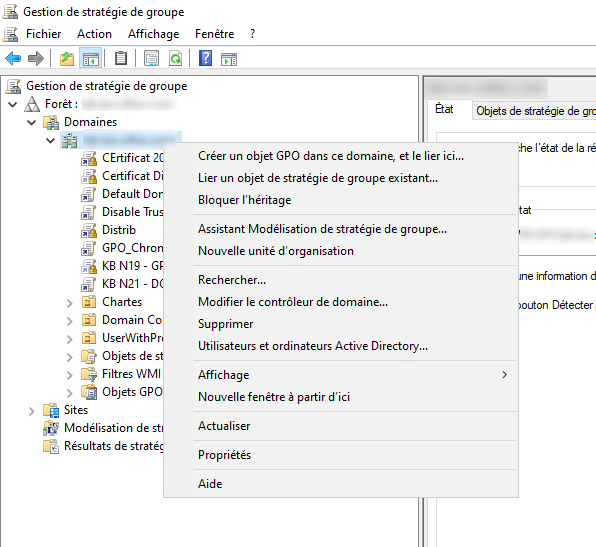
- Create a new GPO:
- Right-click on the target domain or OU.
- Select Create a GPO object in this domain and link it here...
- Give the GPO a descriptive name (e.g., GPO_Chrome_Local_Network_Access).
- Click OK.
4. Modify the GPO
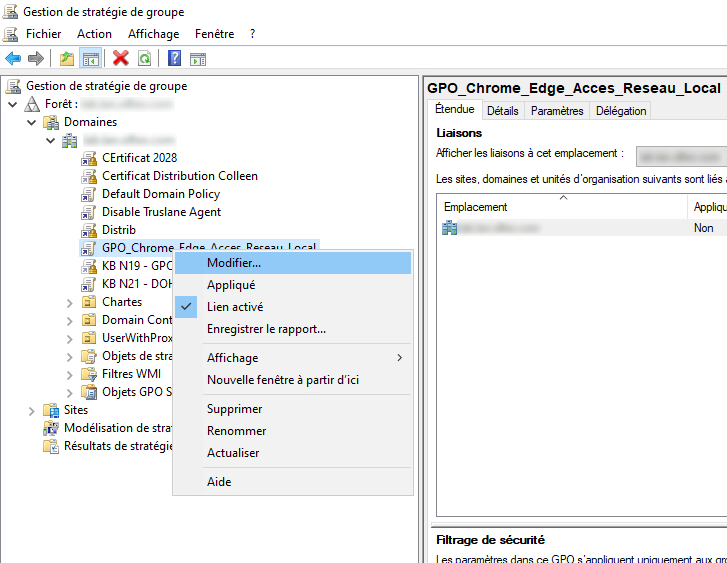
- Right-click on the newly created GPO.
- Select Edit.
3.1 Configuration for Google Chrome
- Navigate to: Computer Configuration > Policies > Administrative Templates > Google > Google Chrome > Local Area Network Access Settings
- Double-click: Allow sites to send requests to local network endpoints.
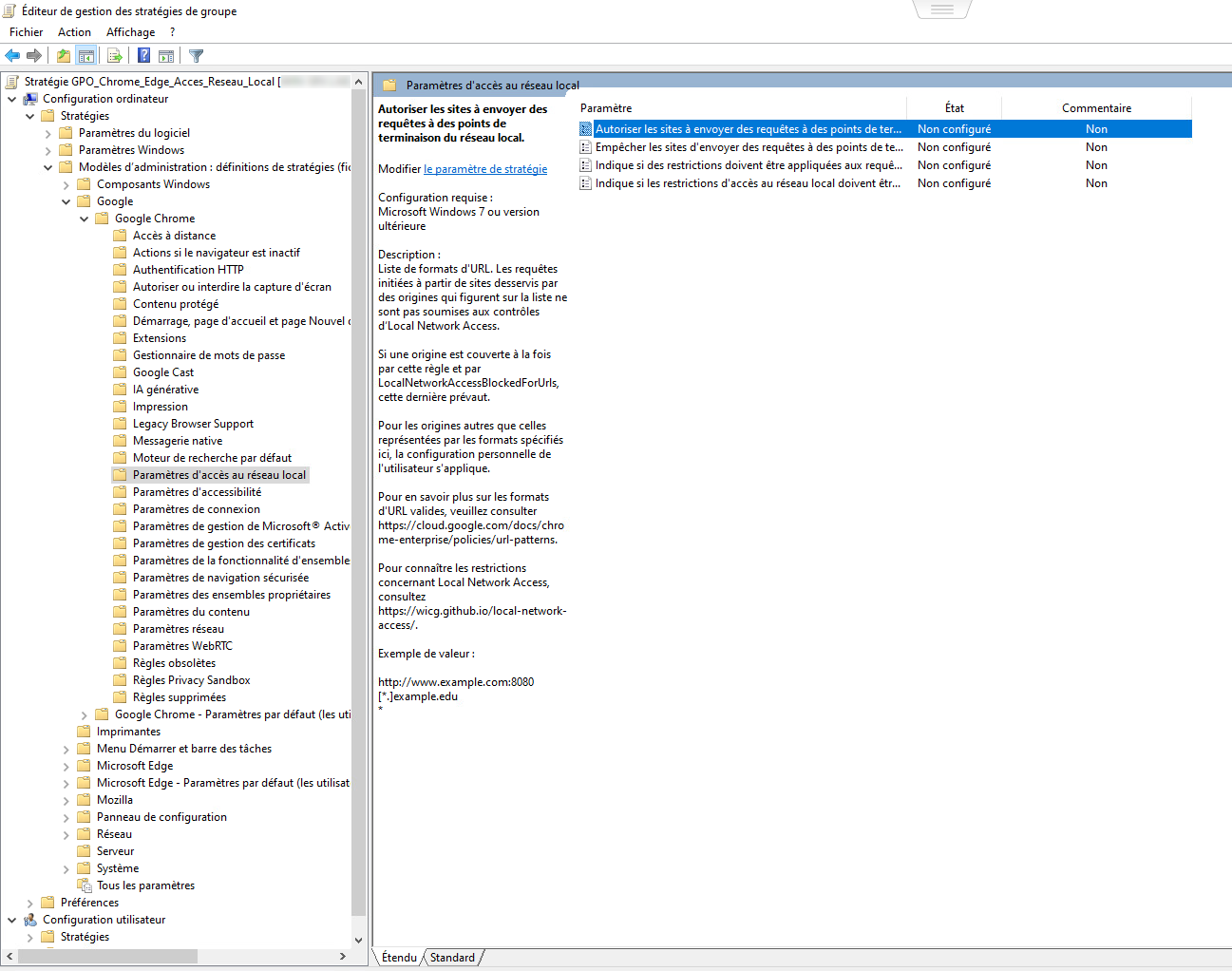
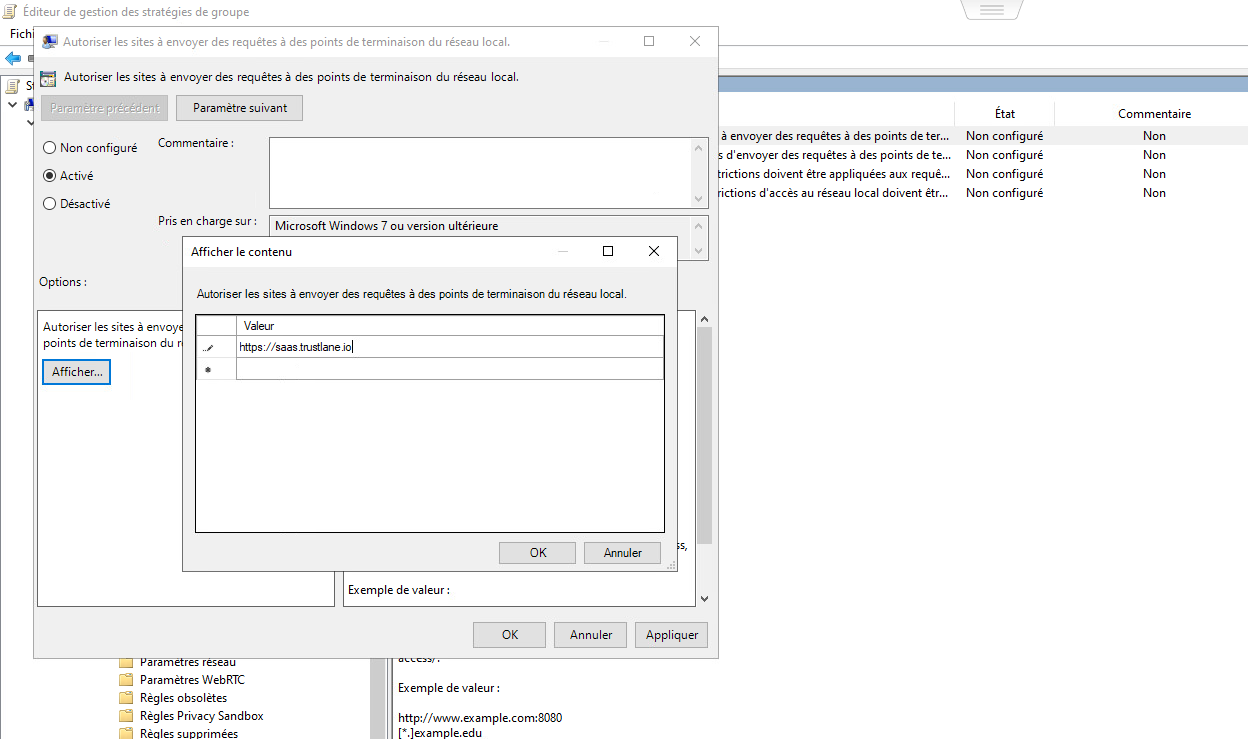
- Enable the setting.
- Click Show.
- Add the URL: https://saas.trustlane.io
- Confirm with OK > Apply > OK.
3.2 Configuration for Microsoft Edge
- Navigate to: Computer Configuration > Policies > Administrative Templates > Microsoft Edge > Network Settings
- Double-click: Allow sites to make requests to local network endpoints.

- Enable the setting.
- Click Show.
- Add the URL: https://saas.trustlane.io
- Confirm with OK > Apply > OK.

4. Applying the GPO to client workstations
- Link the GPO to a group or OU:
- Return to theGroup Policy Management console.
- Select your GPO.
- Click Add ... > Advanced.
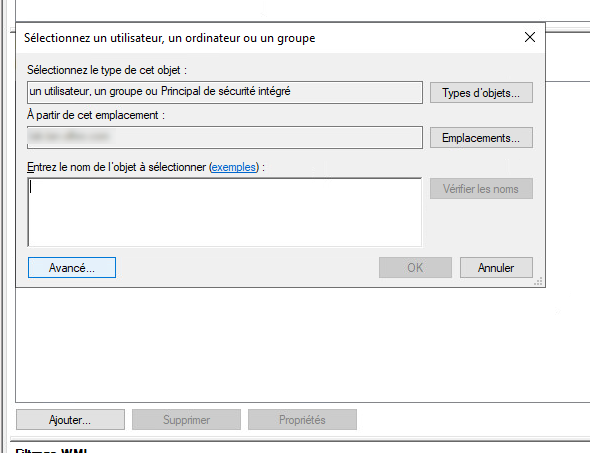
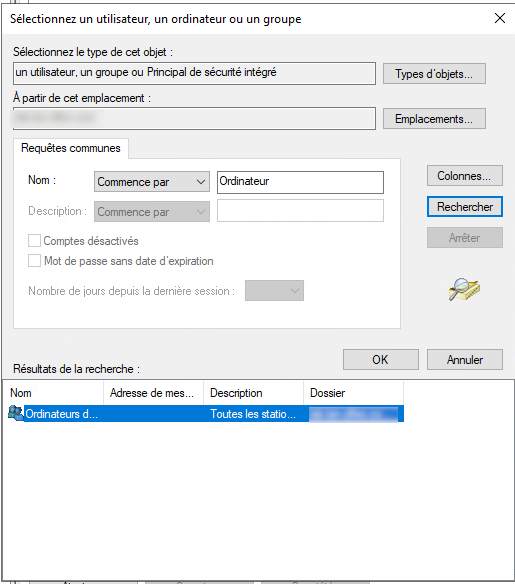
- In the "Object Types"window, select the Computers checkbox.
- Search for and select the relevant client workstation group.
- Confirm withOK.
5. Force the application of the GPO
- On client computers, open a command prompt as an administrator.
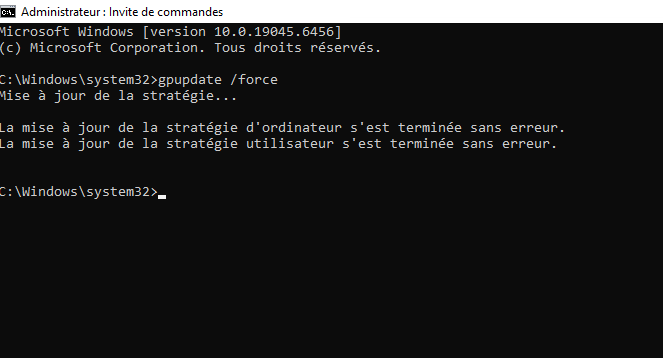
- Run the command: gpupdate /force
Alternative: Wait for automatic synchronization (every 90 minutes by default).