KB No. 21 Force browsers to use the system proxy via GPO
Objective
Configure a GPO to force browsers to use the operating system's proxy settings, already defined by a third-party agent or local script.
Prerequisites
- A functional Active Directory environment
- Group Policy Management Console (GPMC)
- The proxy is already dynamically configured on machines by an agent or script (file
.pac, proxy settings, etc.) - (Optional but recommended) ADMX templates for browsers
Étapes générales
Set the system proxy via GPO
Open the Group Policy Management Console (GPMC)
Create a GPO to force the use of the system proxy
Example name: "GPO_Force_Proxy_System_Browsers"

After naming it, right-click → Edit.
Link the GPO to the OU or machine groups concerned.
Configuring browsers to use the system proxy
Microsoft Edge, Google Chrome, Brave, etc.
Location:
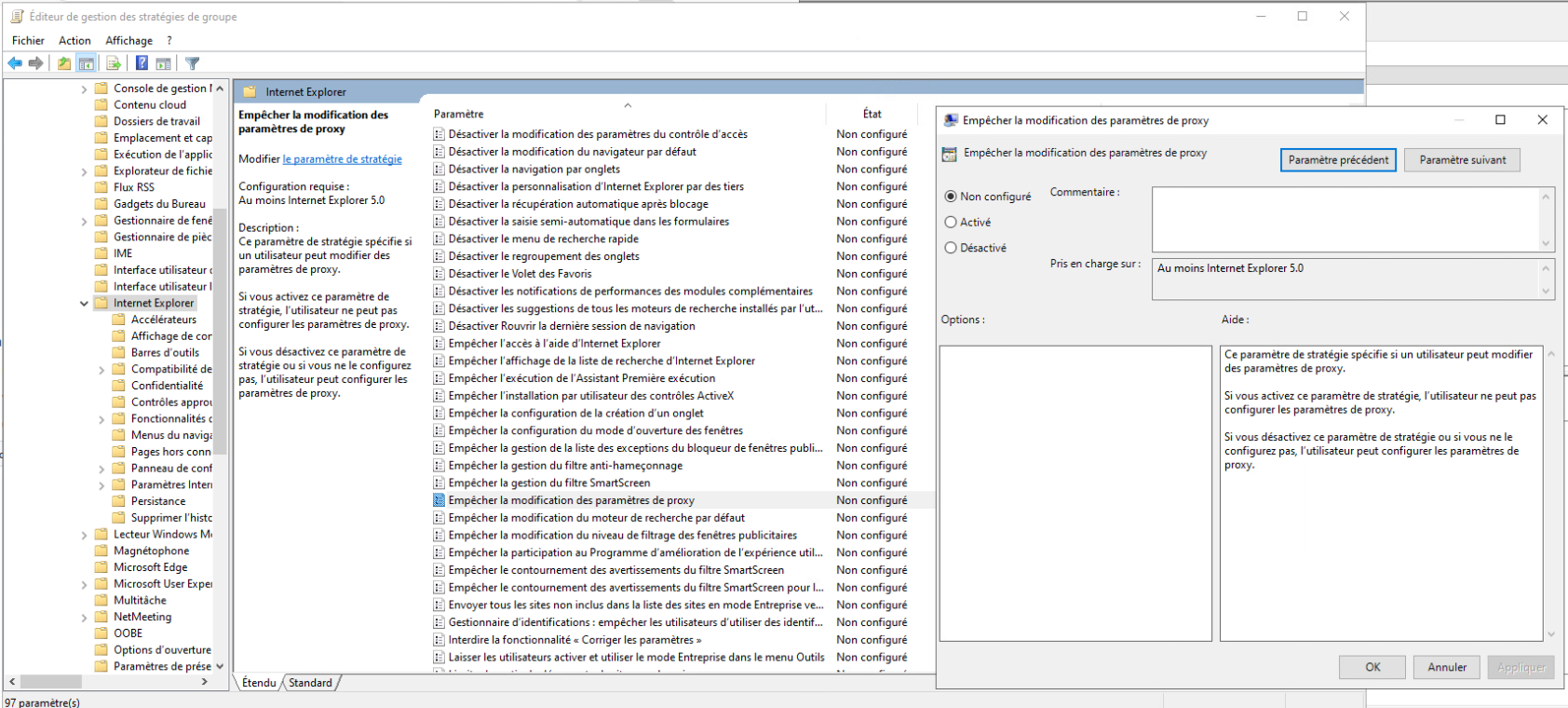
Configuration utilisateur > Stratégies > Modèles d'administration > Composant Windows> Internet Explorer > Empêcher la modification des paramètres Proxy
Settings:
- Configure proxy settings :
Activé - Configuration type :
Utiliser les paramètres de proxy du système d’exploitation
🦊 Mozilla Firefox
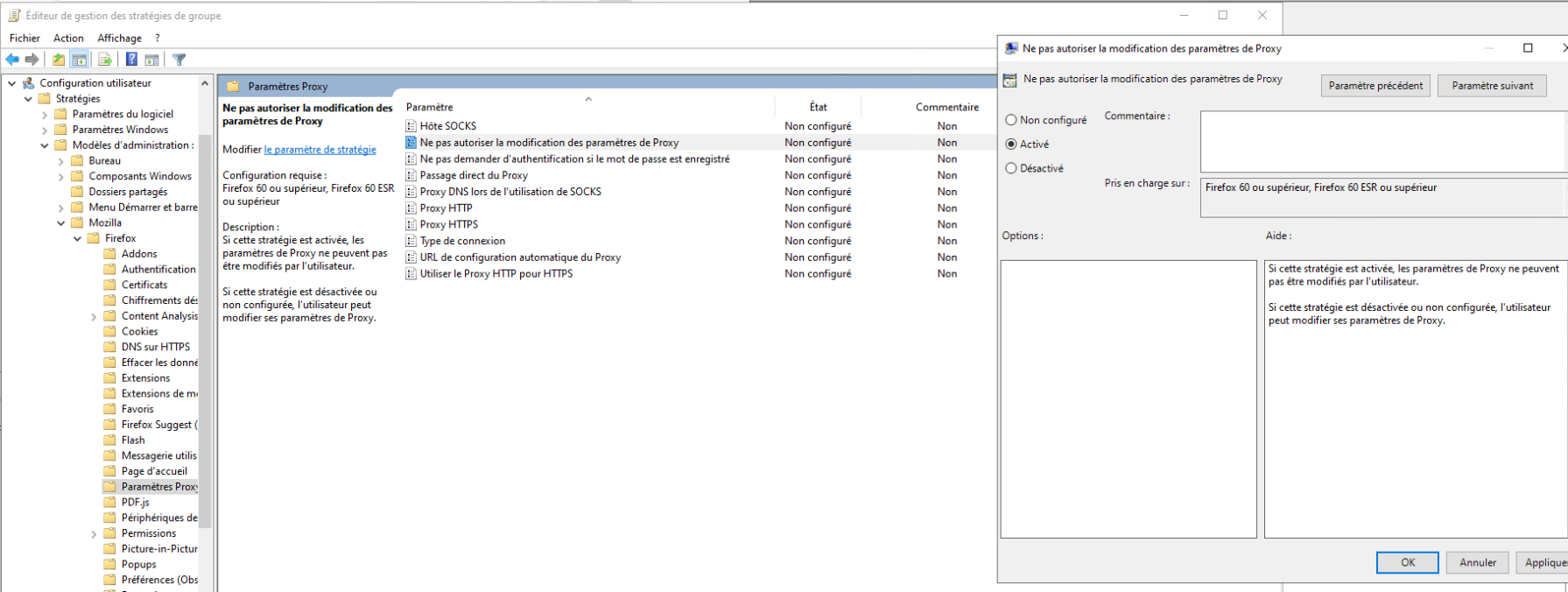
By default, Firefox does not follow the system's proxy settings. This behavior must be forced.
Firefox ADMX templates
Location:
Configuration utilisateur > Stratégies > Modèles d'administration > Mozilla > Paramètres Proxy > Ne pas autoriser la modification des paramètres Proxy
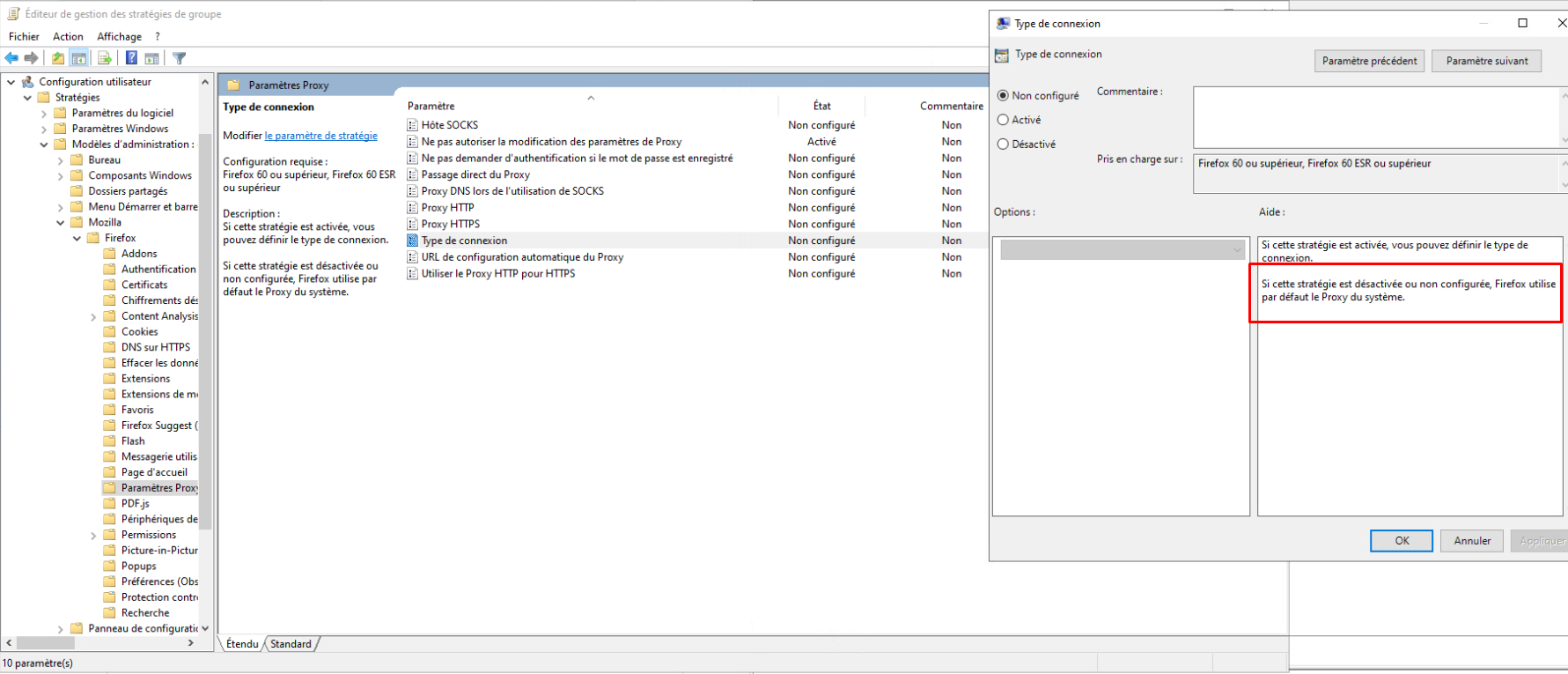
Additional verification
Also, ensure that the connection type is disabled in the same subfolder. This will allow Firefox to use the system's proxy settings directly.
🦁 Brave (bonus)
Brave, based on Chromium, normally follows the system settings. However, if you are using a customized Brave, you can force the behavior via the Registry.
Via Registry or custom GPO:
[HKEY_LOCAL_MACHINE\\SOFTWARE\\Policies\\BraveSoftware\\Brave]
"ProxyMode"="system"
GPO enforcement
Apply the GPO to the target user group or machines.

Verification
- Open a terminal and run:
gpresult /r
Ensure that the GPO is properly applied.
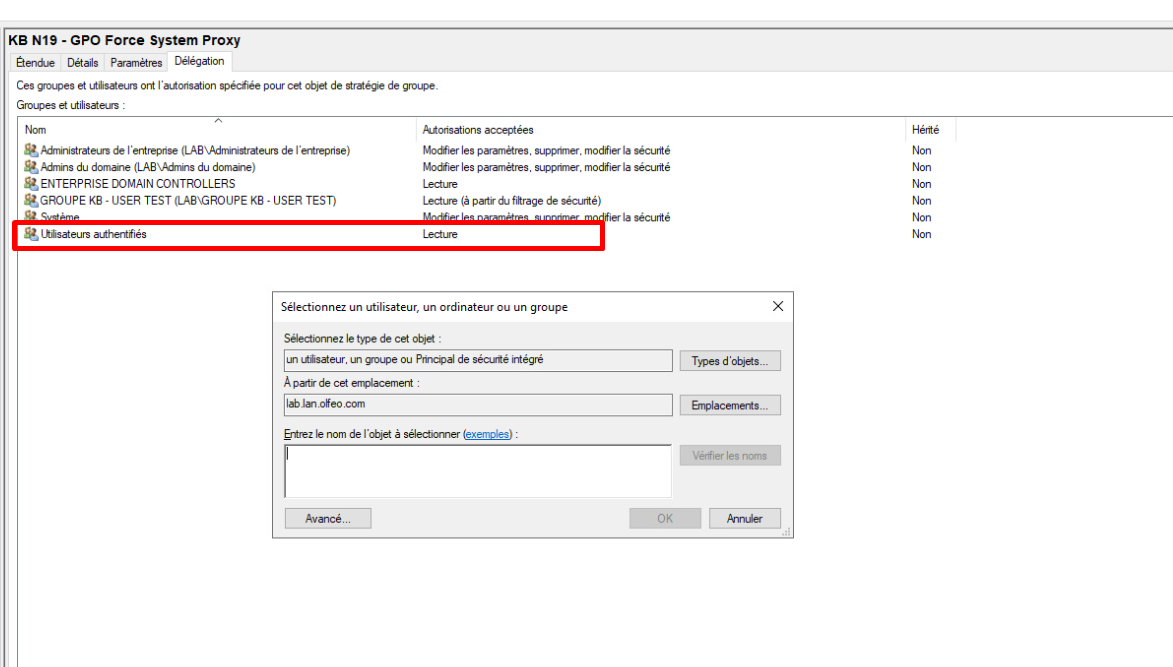
⚠️ If the strategy does not apply (unknown reason, refused, etc.):
Check the read permissions for the GPO. The target group must be listed in the Delegation tab, and authenticated users must have read permissions.
- Check on a client workstation that the proxy is correctly defined by the agent or script.
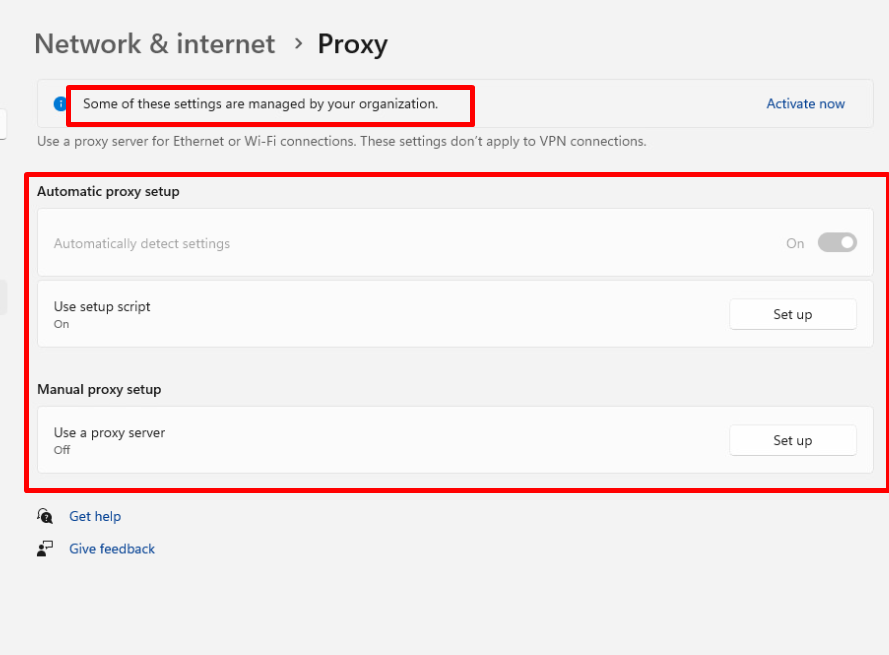
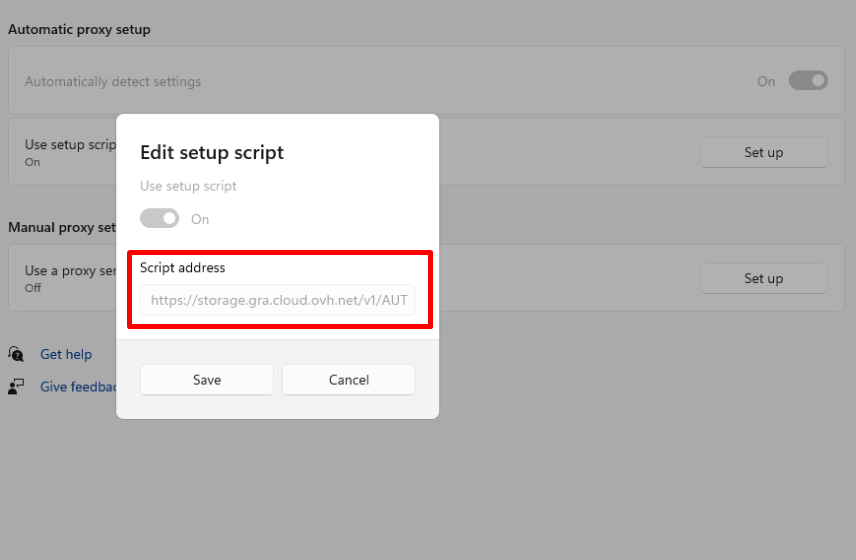
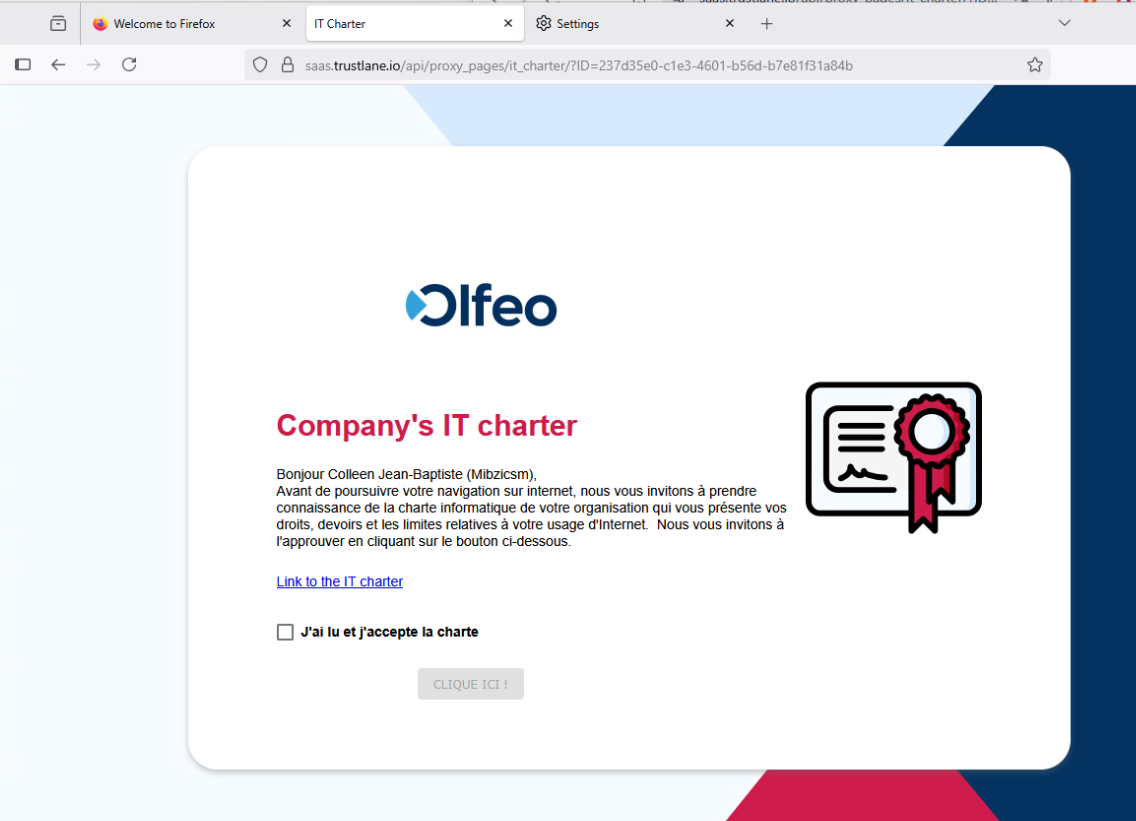
Open a browser and confirm that:
- The IT policy (or other filtered page) appears correctly.
- The proxy settings cannot be changed.
- The browser is using the system proxy correctly.
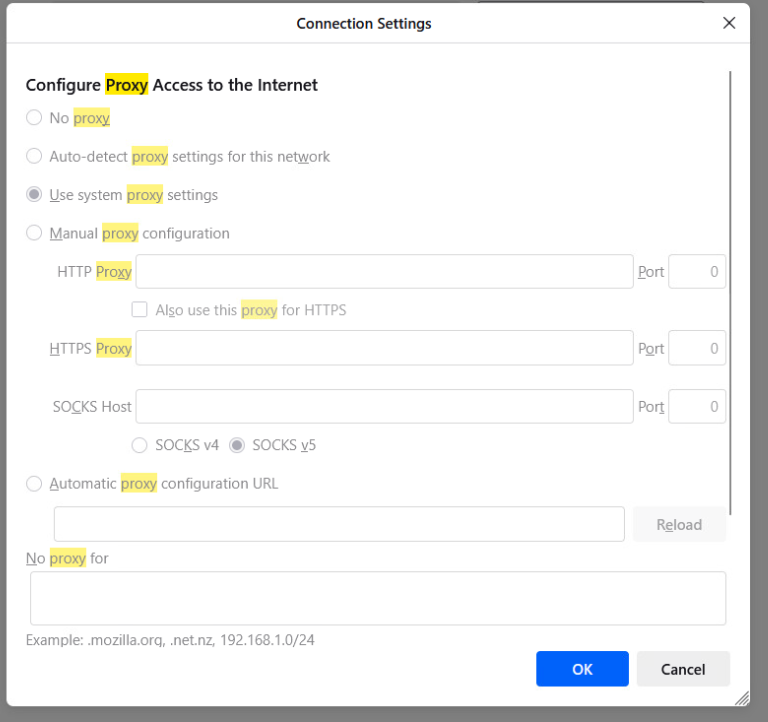
Specific checks
- For all Chromium-based browsers (Edge, Chrome, Brave), the system proxy is supported natively.
- For Firefox: go to Settings > Network > Proxy Settings. If the change is blocked and the message "Use system proxy settings" is displayed, it's OK.
Finally, test filtered or logged browsing via the proxy to confirm that it has been taken into account.
Recommendations
- Do not define a proxy in the GPO to avoid conflicts with the agent.
- If necessary, block access to proxy settings in browsers to prevent bypassing (see lockdown policy or Kiosk mode).