KB No. 19: Renewal of the SAML signature certificate on EntraID
Background
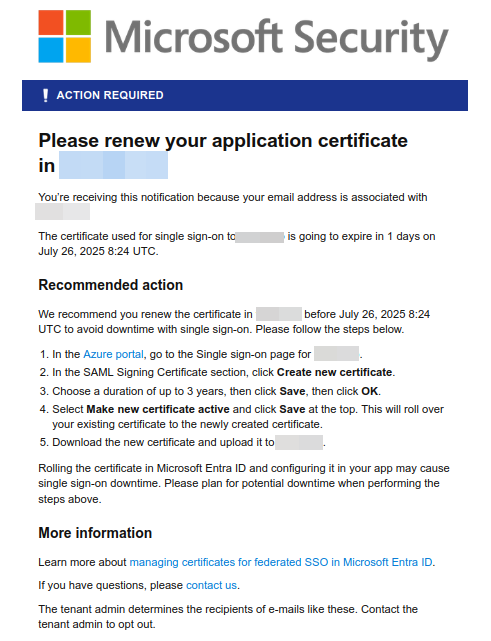
This article explains how to renew the SAML signature certificate after receiving an email from Microsoft regarding its expiration.
Prerequisites
Your certificate is expiring, or you have received an email from Microsoft with the following message:
Step 1: Open EntraID
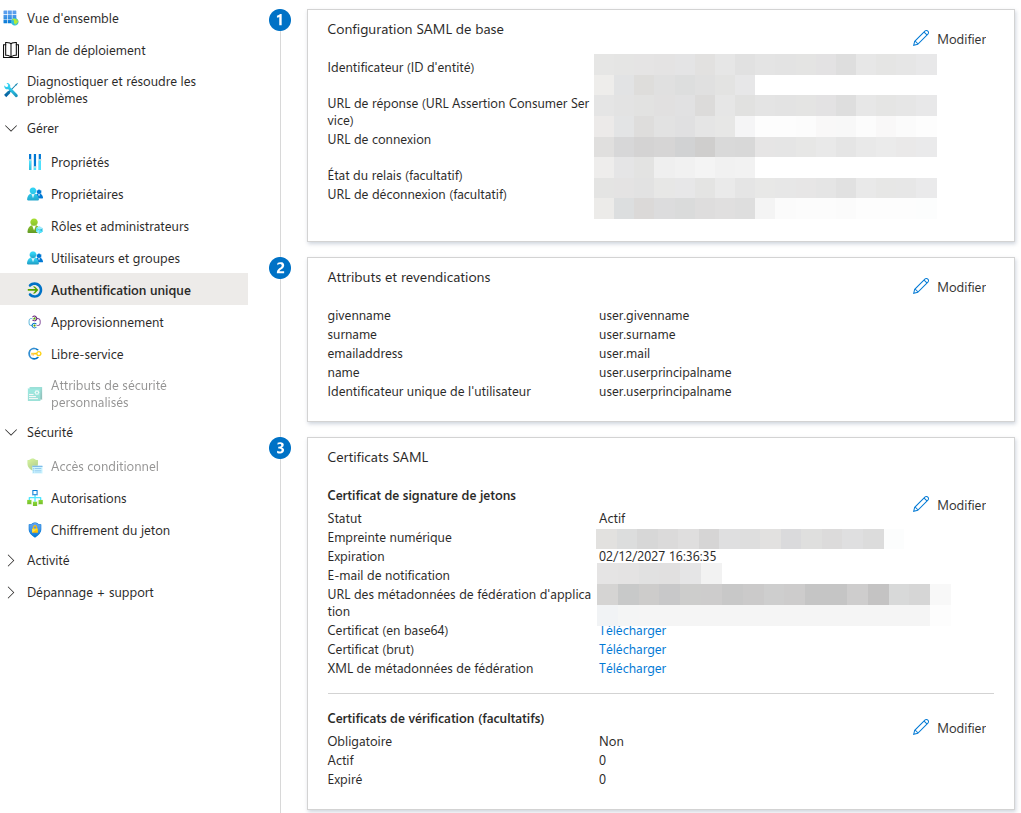
To renew the SAML signature certificate, go to the Single Sign-On > SAML Certificates section of the application and click Edit.
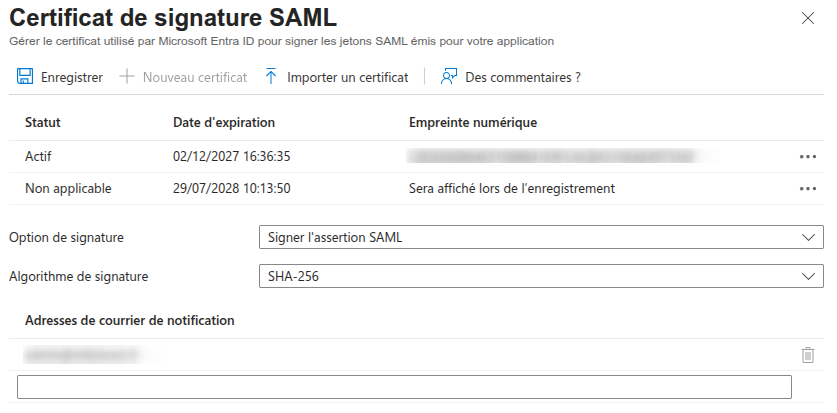
Add a new certificate with a duration of up to three years by clicking New Certificate. A new line will appear below the old certificate with the status " Not applicable."
Step 2: Force the new certificate to be taken into account
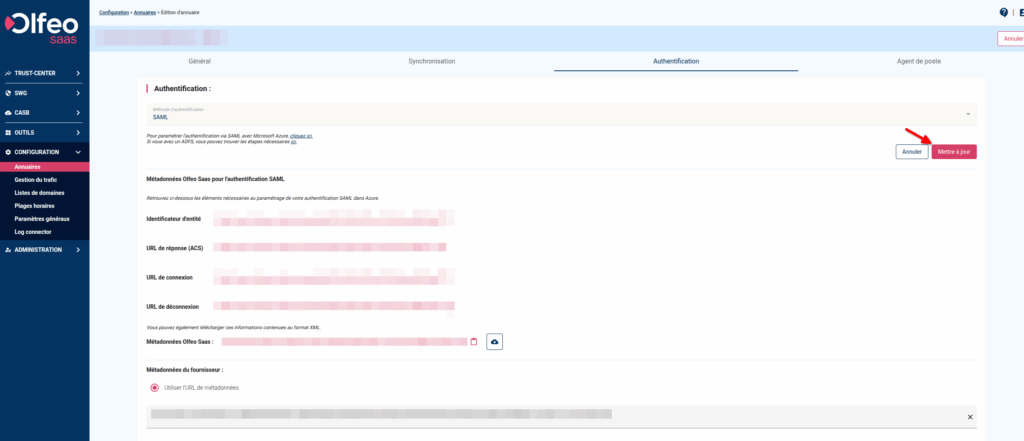
The new certificate will be recognized by your Olfeo tenant within 24 hours. However, you can force it to be recognized by manually launching an update from the administration interface.
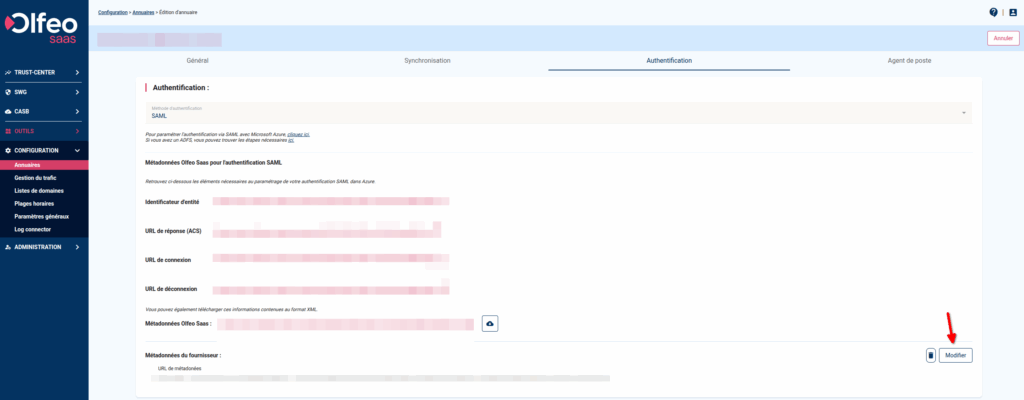
To do this, go to the Metadata section of the provider in the Authentication tab of your directory, then click Edit, then Update.
Step 3: Activating the new certificate
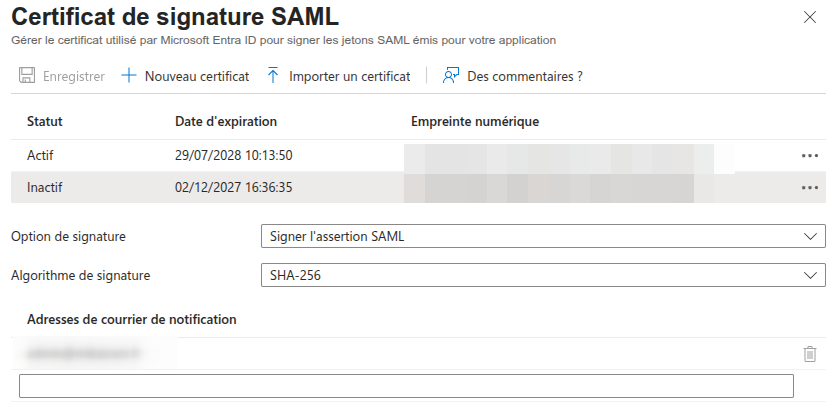
To activate the new certificate on EntraID and ensure it is taken into account, click on the three dots on the right, then select Set as active certificate. The old certificate will then change to Inactive status.