KB No. 08: Configuring VMware Workspace ONE Access as an Identity Provider (IDP) with Olfeo SaaS
Background
This document covers the basic configuration of VMware's VMware Workspace ONE Access solution (formerly known as VMware Identity Manager) as an identity provider (IDP) with the Olfeo SaaS product.
VMware's Workspace ONE Access is an authentication and identity management solution that enables organizations to secure and manage access to applications, data, and resources for their end users. It acts as an IDP, providing single sign-on (SSO) and centralized identity management for cloud products.
Important note
The screenshots below were taken using version 21.08 of Workspace One Access. Differences may exist depending on the version you are using. However, the principle remains largely the same.
Prerequisites
Have synchronized your company directory with Olfeo SaaS. For this part, refer to the Olfeo SaaS technical documentation: configuring and managing directories.
Have ensured that the endpoints required for authentication are publicly exposed on the internet.
Have selected the SAML authentication method in your Olfeo SaaS directory.
Configuration steps:
- Create a new application.
- Go to Catalog > Web Apps.
- Click New to add a New application.
- Name the application and click Next.
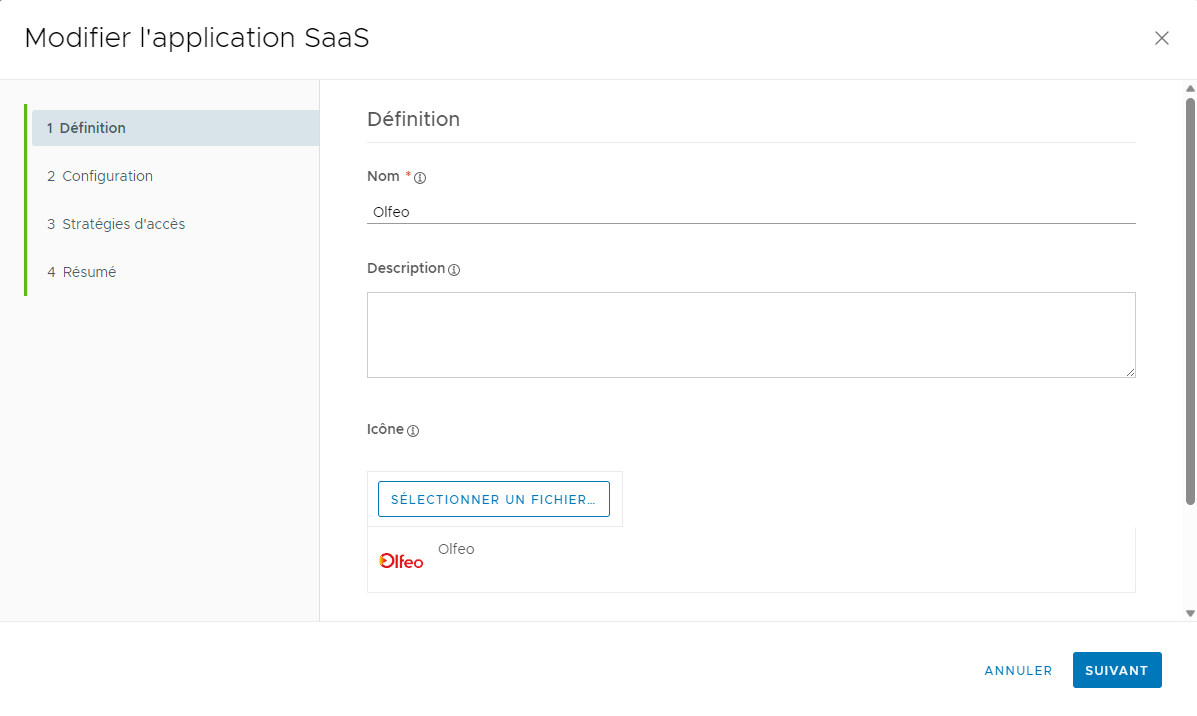
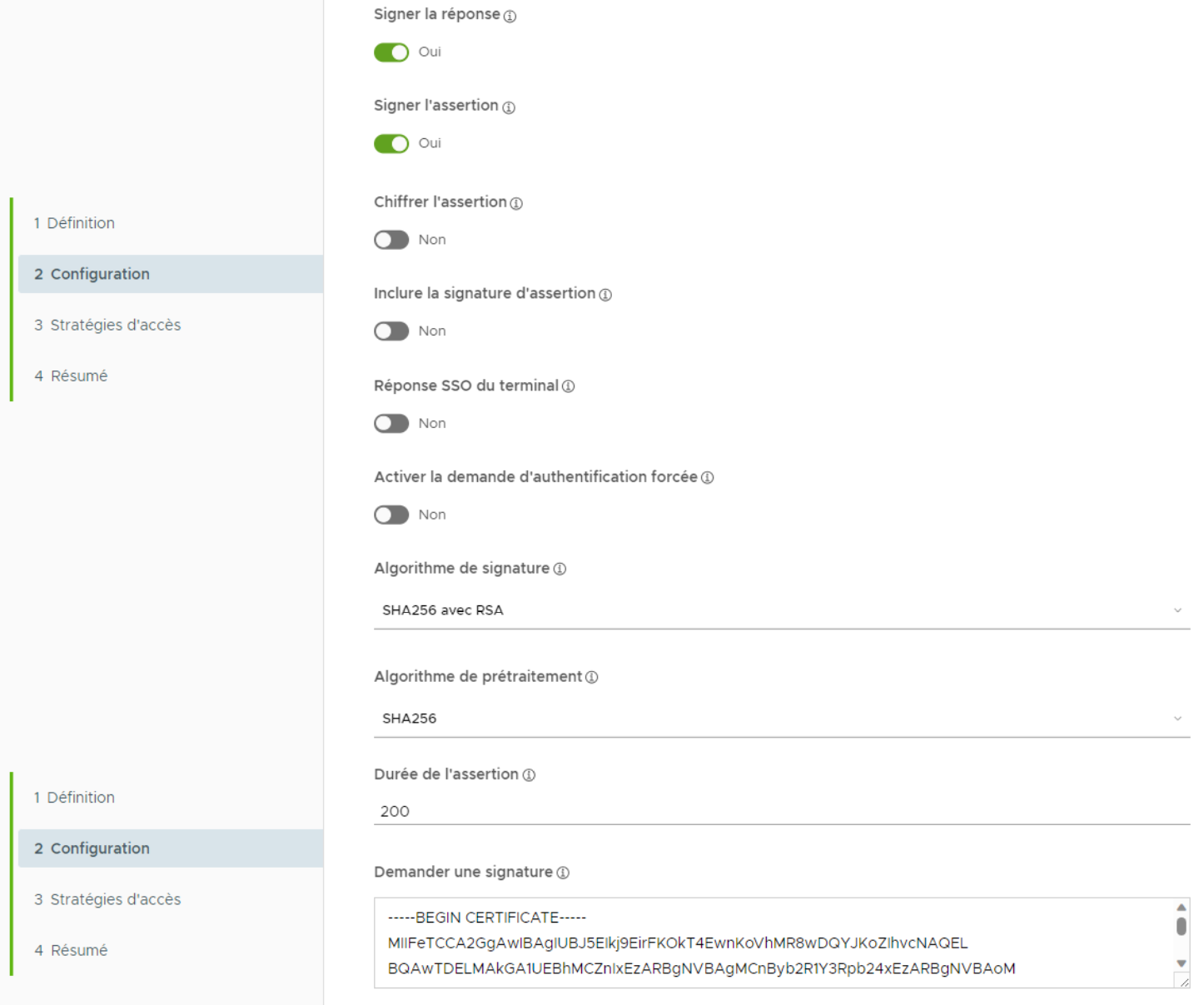
- In the Configuration section, enter the following information for Single Sign-On:
- Authentication type: SAML 2.0
- Configuration: manual
- Single Sign-On URL: Login URL: https://saas.trustlane.io/api/sso/saml/XXXXX/login
- Destination URL: Response URL (ACS): https://saas.trustlane.io/api/sso/saml/XXXXX/acs
- Application ID: Entity identifier: https://saas.trustlane.io/api/sso/saml/XXXXX/login
- Username format: email address (name@domain.com)
- Valeur du nom d’utilisateur : ${user.userPrincipalName}
Attention, la propriété identifiante définie lors de la synchronisation de votre annuaire avec Olfeo Saas doit être utilisée au niveau de l’attribut NameID (ici Valeur du nom d’utilisateur : ${user.userPrincipalName}).
- Still in the configuration section, enter the information related to the signature:
- Sign response: enabled
- Sign assertion: enabled
- Signature algorithm: SHA256 with RSA
- Preprocessing algorithm: SHA256
- On the Access Policies page, select the default policy or the one you created earlier. You can create access policies, which allow you to define the duration of the authentication token that the IDP will distribute to the SPs (Olfeo Saas) that depend on it.
- Click Next, then Save and Assign.
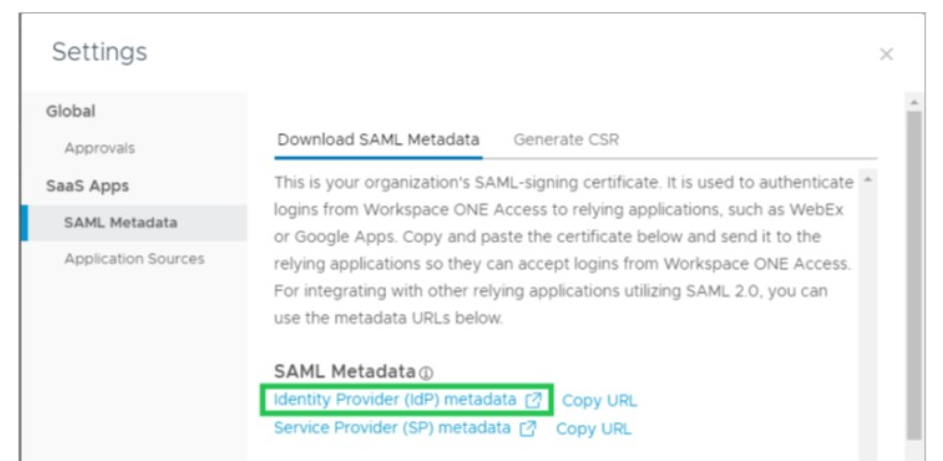
- Under Catalog > Web Apps, click Settings.
- In the Settings window, navigate to the SAML Metadata section.
- Click Identity Provider (IdP) metadata. This action opens a new window in your browser with XML data. Copy the "Entity ID (entityID)" URL. URL in the form: URL in the form: https://YYYYYYY/SAAS/API/1.0/GET/metadata/idp.xml
- Then return to the Olfeo SaaS administration interface, go to Configuration, Directories, Directory editing, Authentication, and enter this URL in the "Provider metadata" section.
- Next, in VMware Workspace ONE Access, all you need to do is return to Catalog, select the application you created, and assign the users of your choice.
- At this stage, all you have to do is perform an authentication test with a user.