
KB No. 2731: USING A FILEZILLA-TYPE FTP CLIENT WITH THE FTP PROXY
How to use an FTP client such as Filezilla with the FTP proxy.
Objective
We will see how to use an FTP client such as Filezilla with the FTP proxy provided by the Olfeo solution.
The FTP proxy in the Olfeo solution operates exclusively in passive mode and offers a choice of authentication methods, all of which are managed by our filtering engine.
Steps
Step 1: Configuring the FTP Proxy
- Go to theProxy Cache QoS > FTP > Configuration tab.
- Add a listening FTP proxy using the button
 .
. - In the newly created proxy, enter a name in theLabel column field.
- In the newly created proxy, enter the listening TCP port in thePort column field.
- In the newly created proxy, if you want to set up additional options, click on the link in theOptions column.
- If you want to limit the maximum number of outgoing connections allowed by the proxy, enter this maximum number of connections in theConnection Limit field.
Step 2: Authentication/No authentication
It is possible to enable authentication on FTP proxies. Before doing so, you must have a directory and an authentication method:
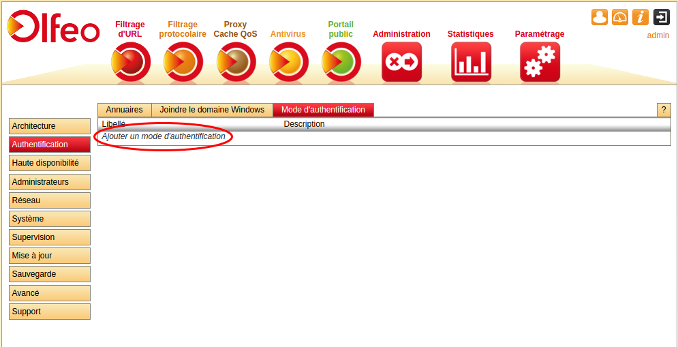
- To add an authentication method, go to the page Settings > Authentication > Authentication mode.
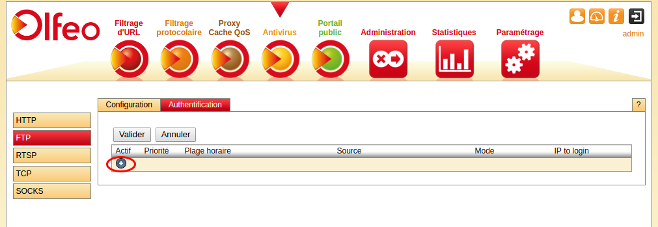
- Add an authentication rule to the FTP proxy using the button. .
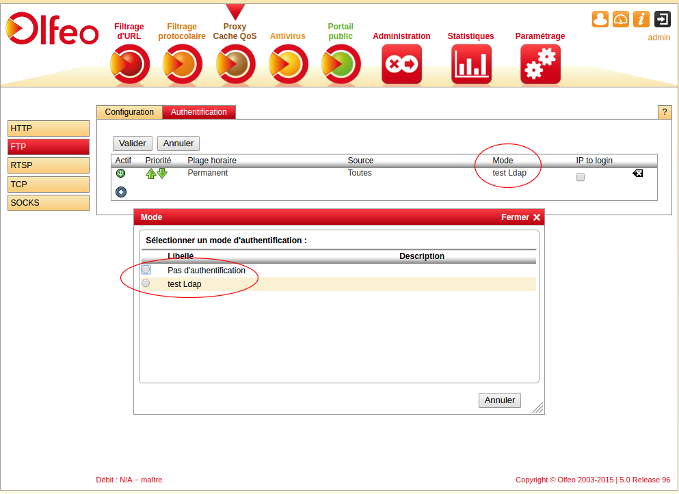
- Select the authentication mode that was created inSettings > Authentication > Authentication modeor theNo authentication option.
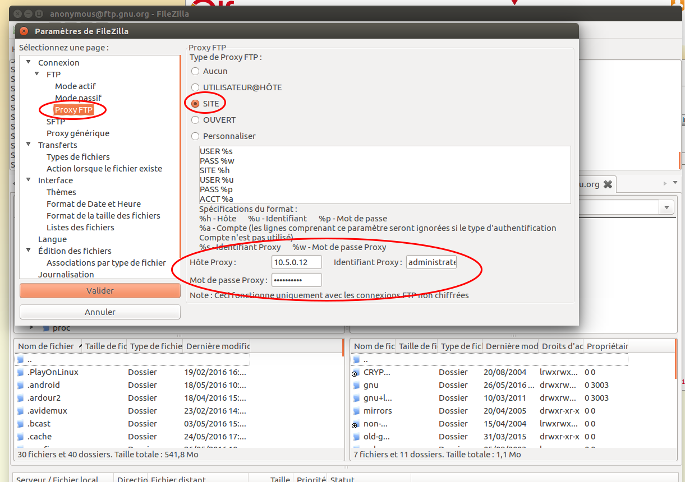
Step 3: Filezilla Configuration
Validation
In the real-time section (Statistics > Real-time), the query will be visible:
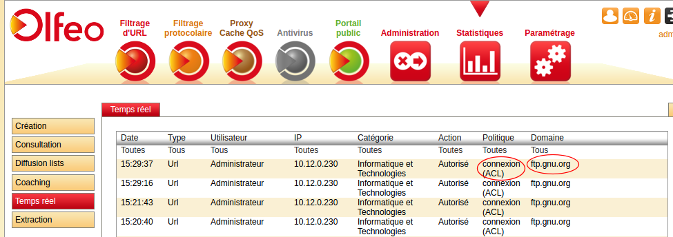
Note that in thePolicycolumn, we can see that it is the rules engine that manages this type of request.
It is possible to apply filtering to connections, access, and content. These three methods can be applied independently of each other or together under theAdministration > Users tab.