▶ BLOG
KB No. 2536: DISPLAY THE INTERNET CHARTER IN PDF FORMAT ON THE CHARTER SIGNATURE PAGE
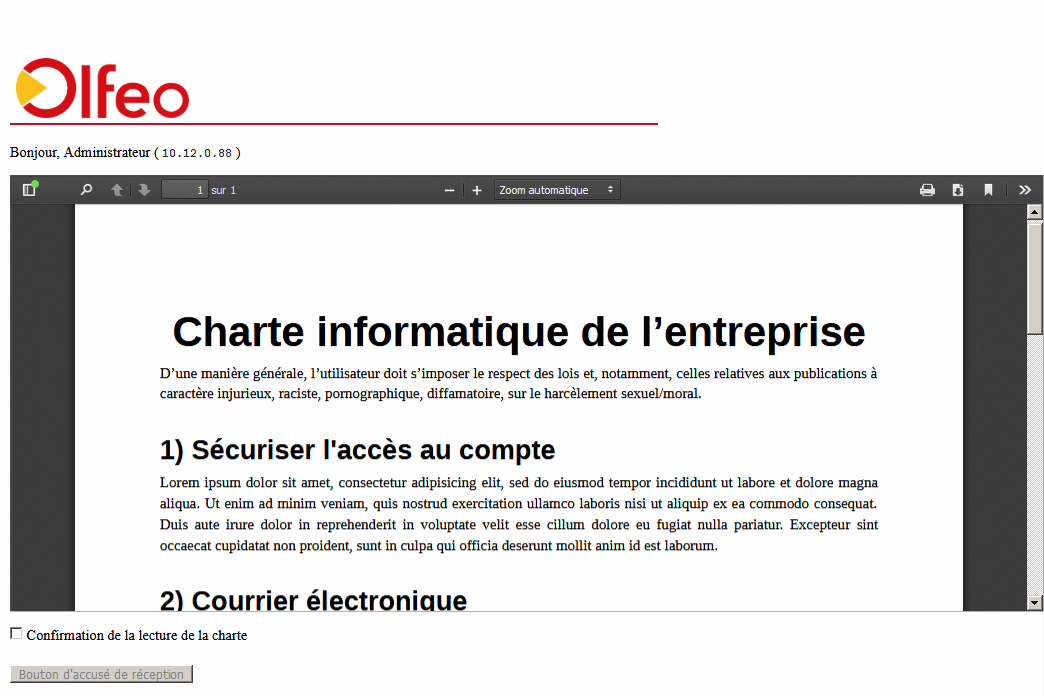
How to display the Internet charter in PDF format directly on the lock screen requesting signature of the charter, in order to encourage users to read it.
Objective
Display the Internet charter in PDF format directly on the lock screen requesting the charter's signature, in order to encourage users to read it.
Steps
Versions 6.2 and earlier
Step 1
- Host the digital file on Olfeo (or another web server).
- Copy this file to /opt/olfeo/www/share/userdata/charte.pdf. Be sure to check whether Olfeo is running in chroot mode.
Step 2
- Log in to Olfeo's webadmin at http(s)://IP_address:8081(8443).
- In theAdministration > Internet Policy section, create a new internet policy.
- And insert this in the section Messages/Presentation :
Remember to replace http(s)://olfeo_IP_address:8081(8443) with the IP address and port of the Olfeo web interface.
Step 3
Apply the new policy to users in the administration section.
Versions 6.3 and above
Step 1
- Host the digital file on Olfeo (or another web server).
- Copy this file to /opt/olfeo/www/dns_blocking_server/charte.pdf.
Be sure to check whether Olfeo is running in chroot mode.
Step 2
- Log in to Olfeo's webadmin at http(s)://IP_address:8081(8443).
- In theAdministration > Internet Policy section, create a new internet policy.
- And insert this in the section Messages/Presentation :
Remember to replaceolfeo_IP_addresswith the IP address of the Olfeo web interface.
Step 3
Apply the new policy to users in the administration section.
Validation
Here is an example of the result: